---
title: "Forecasting (Beta)"
description: "Create a Datarelix forecast, check the data and model results, approve publication, and configure refreshes with a screenshot walkthrough."
canonical: https://docs.datarelix.ai/guides/forecasting/
---
# Forecasting (Beta)
Use **Data science → New forecast** to predict a measure over time from a connected SQL source. Describe the measure and horizon, check the proposed plan, choose your review rules, and inspect the first result before publishing it. A pipeline saves that definition and its runs so you can return to it and refresh it.
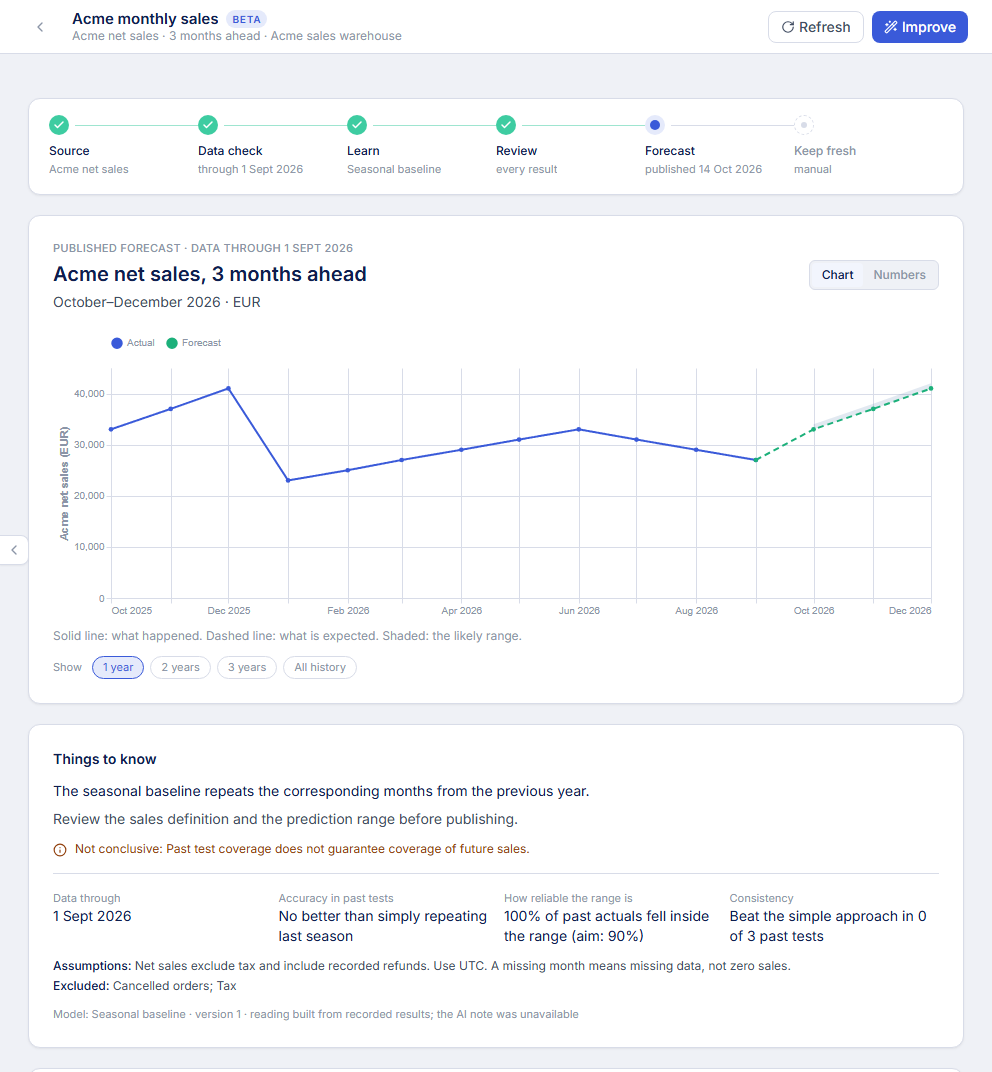
This guide follows Acme’s monthly net sales in EUR, forecasting October through December from completed history through September 2026. The application’s controls are in English. Select a screenshot to open it at full size.
## Before you start
- Sign in to [the Datarelix app](https://app.datarelix.ai/data-science/).
- Have an active [database connection](/guides/connections/) with permission to read the relevant tables or reporting view. If you do not manage database access, ask its owner to provide that connection and confirm the sales definition.
- Make the relevant tables available in the connection’s schema selection. Clear column descriptions help the draft use the right dates and measures.
- Have historical dates and a numeric measure. More history is needed for a longer horizon and for seasonal comparisons; the data check determines what the selected history can support.
Forecasting currently requires SQL. Kusto and Elasticsearch connections are excluded from the picker. Connections using user-delegated Microsoft Entra or Databricks sign-in are also excluded; ask the connection owner about an appropriate supported authentication method. Paused connections do not appear.
## 1. Describe the forecast
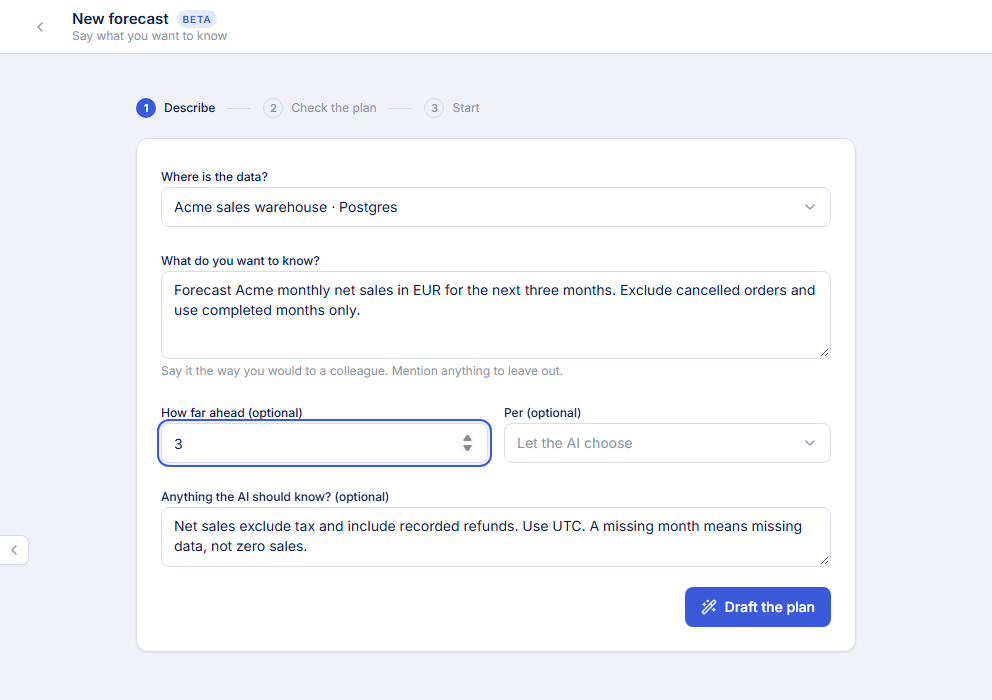
Open **Data science** in the sidebar, then **New forecast**. Under **Where is the data?**, select your connection. In **What do you want to know?**, enter:
> Forecast Acme monthly net sales in EUR for the next three months. Exclude cancelled orders and use completed months only.
**How far ahead (optional)** is a number of periods, not a date. Enter `3`; **Per (optional)** selects the period, such as **Month**. You can leave these fields empty when your request already specifies them, then verify the draft.
Under **Anything the AI should know? (optional)**, state the definitions that change the result:
> Net sales exclude tax and include recorded refunds. Use UTC. A missing month means missing data, not zero sales.
Specify currency, exclusions and missing-data meaning before drafting the plan.
Choose **Draft the plan**. This drafts the query and checks the source data; it does not train a model yet. Describing a forecast in the main conversation can also offer a draft that opens in this workflow.
## 2. Check the plan and data
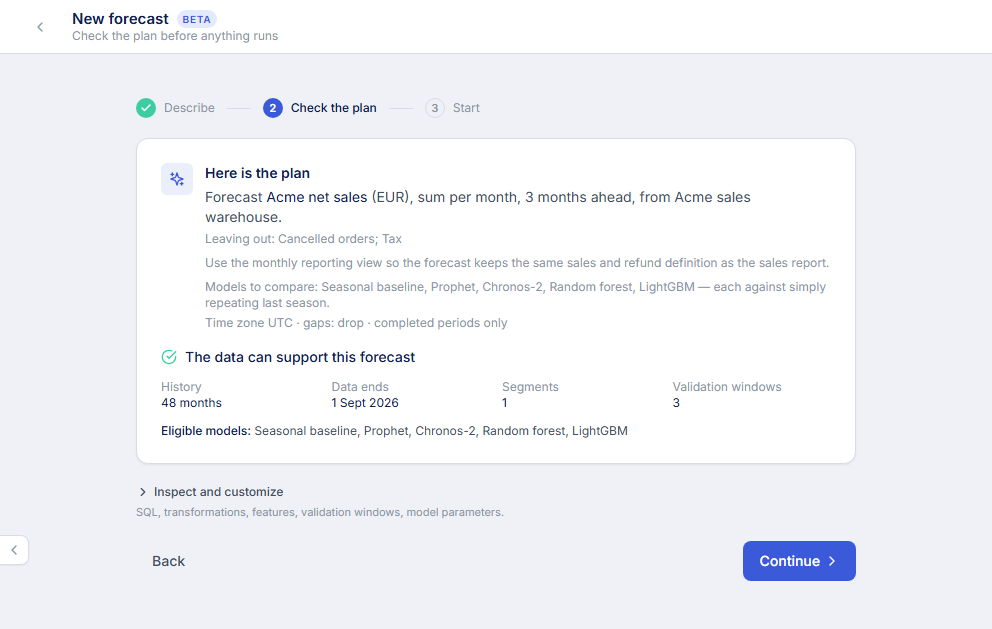
In **Check the plan**, verify the measure, units, aggregation, period, grouping, horizon, exclusions and time zone. For Acme, the plan should say net sales in EUR, summed per month, three months ahead, using completed periods.
If clarification questions appear, answer them and wait for the draft and data check to update. **Continue** stays unavailable while questions or blocking data issues remain.
The history end date determines where the forecast begins. Monthly periods are labelled by their first day: 1 September represents the completed September period.
**The data can support this forecast** means the readiness checks passed. It does not promise an accurate prediction. Read the issues, eligible models and validation-window count as well as the status.
### Inspect the query and definition
Expand **Inspect and customize** to review SQL, column mappings, transformations, features, validation settings and model parameters. An analyst should confirm that the query selects the intended date range, applies the agreed sales definition and avoids duplicating values through joins.
An aggregated query should return one row per period and segment. Preserve the agreed measure: a monthly count already calculated by SQL is a count value, not a set of transactions to count again. Raw-row queries use the selected aggregation to build periods.
Review these settings in particular:
| Setting | What to check |
| --- | --- |
| Date, target and group columns | The date marks the reporting period; the target is numeric; grouping produces the segments you intend. |
| Missing periods | Use zero only when no record means zero activity. Interpolation estimates gaps; dropping missing observations does not establish that activity was zero. |
| Completed periods and time zone | Avoid comparing a partial current month with complete historical months. |
| Validation windows | Each past test fits on earlier history and predicts a later window. A longer horizon can leave fewer tests available. |
| Prediction range | The chosen level is a target; inspect measured coverage after the run. |
| External inputs | Historical predictors need a sufficient lag; known-future predictors need values for the forecast dates. A note about a promotion does not supply those values. |
After changing the plan, choose **Check the data again**. Editing clears the previous readiness result; continue only after the new check passes. See [writing and checking queries](/guides/queries/) for query review.
## 3. Choose reviews, effort and refreshes
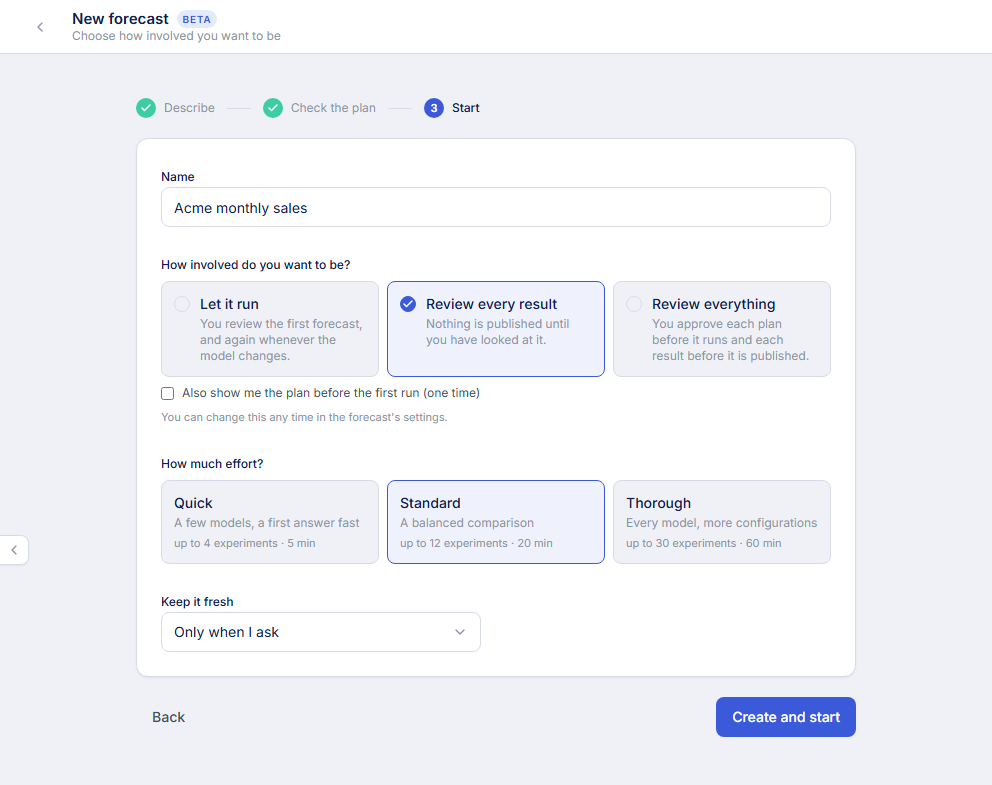
Choose **Continue**, give the pipeline a recognisable **Name**, and select how involved you want to be:
| Choice | What happens |
| --- | --- |
| **Let it run** | Review the initial forecast and changes to the published model or configuration. Routine refreshes of the accepted configuration can publish automatically. |
| **Review every result** | Each proposed result waits for publication approval. |
| **Review everything** | Approve each execution plan and each proposed publication. |
Material changes to the forecast definition require review regardless of the setting. You can also check **Also show me the plan before the first run (one time)** without changing the persistent review rules.
Review frequency and compute allowance are separate choices.
Under **How much effort?**, choose **Quick**, **Standard** or **Thorough**. The cards show caps on experiments and compute minutes, not completion-time promises or accuracy guarantees. Eligible families include Seasonal baseline, Prophet, Chronos-2, Random forest and LightGBM; data readiness, availability and the allowance determine what runs.
Under **Keep it fresh**, choose **Only when I ask**, **Every day**, **Every week** or **Every month**. Scheduled refreshes start after a forecast is published. Source queries can incur charges from your database or cloud provider.
Choose **Create and start**, or **Create and plan** if you requested approval before execution. A waiting plan offers **Approve**, **Adjust**, **Ask for an explanation** and **Cancel**. Review the proposed batch and its cap before approving it.
## 4. Review and publish the result
The pipeline rail shows **Source → Data check → Learn → Review → Forecast → Keep fresh**. When the first result is ready, it waits for your decision. Closing the browser does not approve it; return to the pipeline to resume the review.
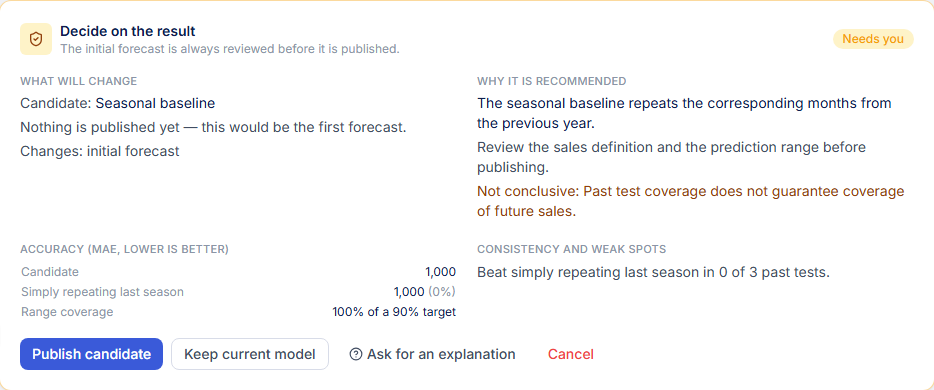
Compare the candidate with the seasonal baseline and read the weak spots before publication.
Check the following:
- **Accuracy:** the selected error metric is lower-is-better. MAE expresses average absolute error in the target’s units; it is not a percentage accuracy score.
- **Baseline:** simply repeating last season can be the best available choice. A more complex model is not guaranteed to improve the forecast.
- **Consistency and weak spots:** inspect how results vary across past tests and segments.
- **Range coverage:** compare observed coverage in past tests with the target. A 90% target does not guarantee that future observations will fall inside the range 90% of the time.
- **Things to know:** read the interpretation, inconclusive findings and source end date. Historical results cannot establish the effect of a new business event that is absent from the data.
Choose **Publish candidate** to make it the pipeline’s current published result. **Keep current model** retains the existing published model; on the first run there is no existing model to retain, so this leaves the pipeline without a published forecast. **Ask for an explanation** lets you question the recommendation before deciding.
“Publish” here means selecting the current result within your account. It does not create a public page or share the forecast with teammates.
## 5. Read, refresh and improve the forecast
Read the dates and units with the chart. Use the view controls to inspect the result as numbers.
**Refresh** reads the source again and refits the accepted configuration. **Improve** explores alternative configurations within the permitted scope and allowance. A changed model or configuration requires publication review; tuning that finds no better configuration can keep the current one.
Under **Details**, open **Runs** to inspect previous results, **Inspect and customize** to review or edit the specification and experiment results, or **Settings** to change the review rules, compute allowance and refresh schedule. Save persistent changes with **Save settings**. Use **Pause pipeline** to stop further runs, and **Activate pipeline** to resume.
Forecast scheduling is separate from [dashboard refresh](/guides/dashboards/), which is manual. A request for extra review on one operation does not rewrite the pipeline’s saved review settings.
## Troubleshooting
| What you see | What to do |
| --- | --- |
| No usable connection | Check that the connection is active, uses SQL and has a supported authentication method. |
| Insufficient history | Shorten the horizon or include more historical data. Review the shortest segment when grouping. |
| Duplicate periods or capped results | Correct the query’s aggregation and joins, or reduce its scope so the full series fits. Do not train on a truncated result. |
| Segments end on different dates | Investigate late or missing data. All segments must cover the same last period; choose zero filling only when it reflects the business meaning. |
| Missing future inputs | Supply values keyed to the forecast dates and segments, or revise the predictor and its availability. |
| Plan changed; cannot continue | Choose **Check the data again** after editing and resolve any new issues. |
| Run waiting for review | Open the pipeline and make the requested decision. Waiting does not turn into approval. |
| No usable validation scores | Review missing actual values, the horizon and validation windows. A run with no scored candidate cannot publish a forecast. |
| Refresh failed | Check the connection, source schema and latest run. An older published result is not a successful refresh. |
For the sales-definition decisions behind this walkthrough, read [forecast monthly sales from your database](https://datarelix.ai/resources/guides/forecast-monthly-sales/).